
Websites or web applications links are used to facilitate navigation through web pages enabling the idea of browsing or surfing.
Links are created with the <a> element.
Within the opening <a> tag the href attribute is used, the value of the href attribute is the url (uniform resource locator) in which when the user clicks it opens the page.
Types of links
- Links that takes the user to another site
- Links that takes a user from one page to another within the same site
- Links that starts up email programs
- Links that open a new window or a tab on a browser
- Links that takes a user to a specific part within the same page
- Links that takes a user to a specific part of another page
- Links that takes the user to another site
These types of links are also known as hyperlinks
These links are created with the <a> element and the value of the href attribute is the absolute url
Absolute url is the full web address for the site the user will go once they click on the link. An absolute URL is composed of the domain name for that site, and followed by the path to a specific page. If no page is specified, the site will display the homepage.
By default browsers display links in blue and underlined
Example
<!DOCTYPE html>
<html>
<head><title>Links</title></head>
<body>
<p> You can follow me on the social media links below </p>
<ul>
<li><a href=”https://www.facebook.com/”> Facebook </a></li>
<li><a href=”https://www.instagram.com/”>Instagram</a></li>
<li><a href=”https://twitter.com/”> Twitter </a></li>
</ul>
</body> </html>
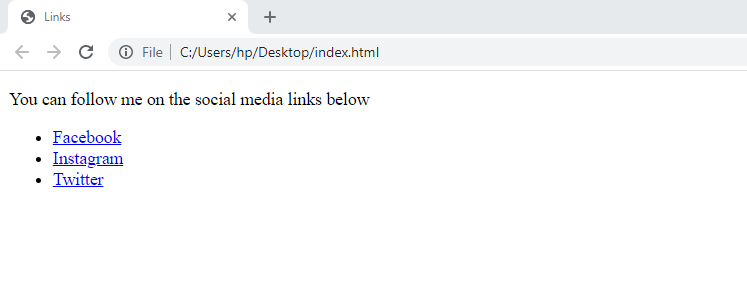
When you click the links on the page they will take you to those websites specified in the href attribute
2. Links that takes a user from one page to another within the same site.
These are also known as local links
These are created with the <a> element and the value of the href attribute is the relative urls
Relative urls are shorthand urls that are used in linking pages within your website.
These type of urls do not need to specify the domain name.
Example
When you want to create your website with several pages you create those pages differently then add links to connect through those pages.
Lets create the first page
<!DOCTYPE html>
<html>
<head><title>Links</title></head>
<body>
<ul>
<li><a href=”index.html “> Home</a></li>
<li><a href=”about.html”>About_Us</a></li>
<li><a href=”contact.html “> Contact</a></li>
</ul>
</body>
</html>
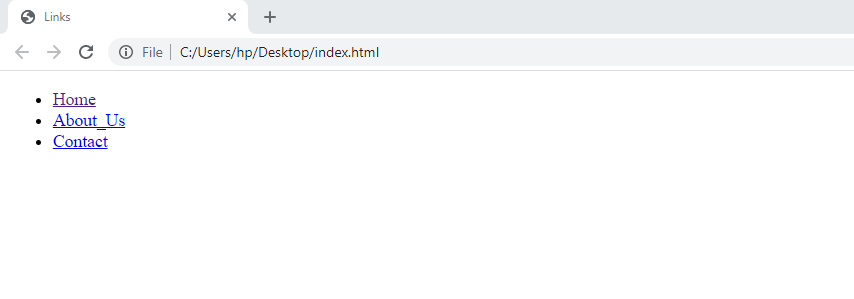
Once the home page is created, create a new folder and move the home page to the new folder and create another page, all the pages created should be saved in the folder created.
The following is the About_us page
<!DOCTYPE html>
<html>
<head><title>Links</title></head>
<body>
<h1> About Us </h1>
<p> This is a small business founded on 2016, The idea was inspired by my husband that made us start the business </p>
</body>
</html>
After you have created the above page save it the exact name as the value of the attribute from the homepage therefore save the above source code as about.html
Make sure the about us page is within the same folder as the homepage, Start up the index page then click the about page it will open. You can repeat the same process for all the other pages within your site.
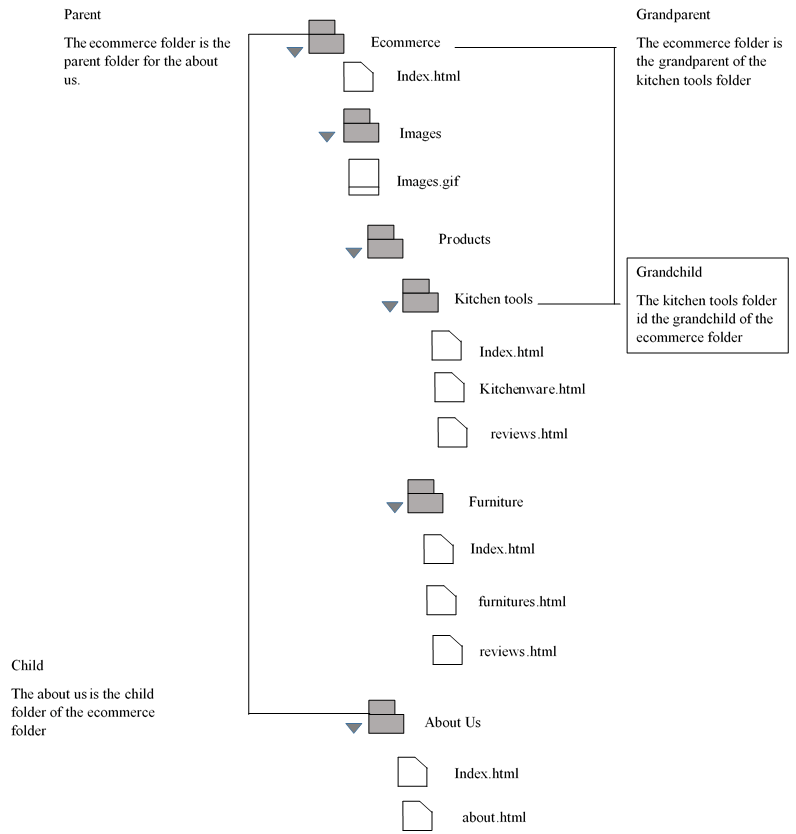
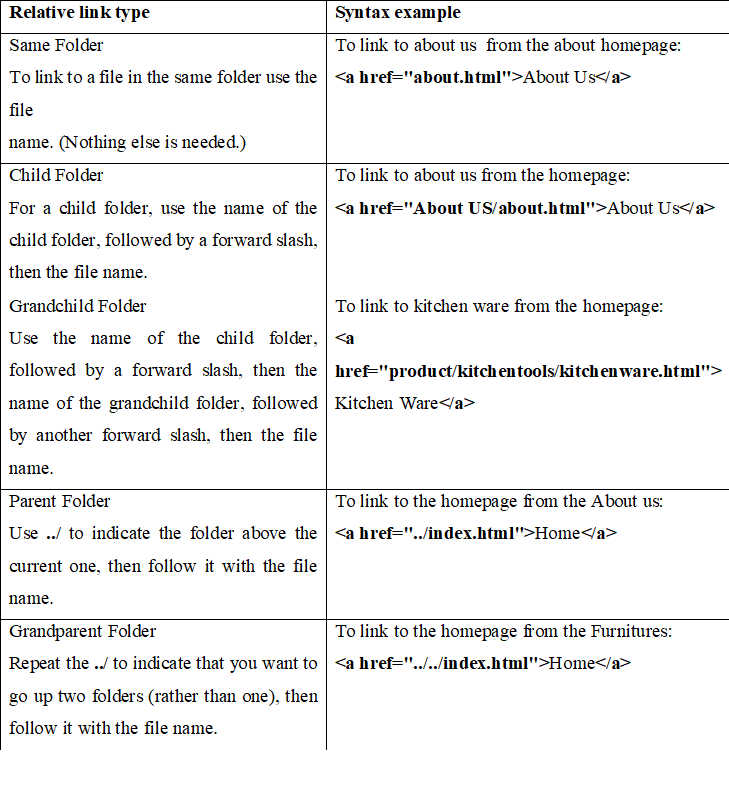
Organizing folder for relative urls
Organizing files and folders is important when the web page author is developing a large website with several pages.
3. Email links
These are types of links which start up email programs.
They are created with the <a> element and the href attribute.
The value of the href attribute is mailto followed by the email address you want the email to be sent to
Example
<!DOCTYPE html>
<html>
<head><title>Links</title></head>
<body>
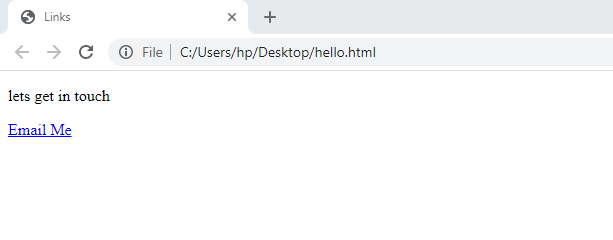
<p>lets get in touch </p>
<a href=”mailto:jamilambarak@gmail.com”>Email Me</a>
</body>
</html>
Exercise
- What is the function of links on web pages?
- Differentiate between absolute and relative urls.
- State the values of the href attribute in the following links: hyperlinks, local links and email links.
- What is the element that is used to create links?
- Using examples explain how you can link the following folders: same folder, parent folder, child folder, grandchild folder and grand parent folder.
 Study with Jamila
Nice one!
LikeLiked by 2 people