
Images can be added to the web pages for various reasons, they usually set the tone of the websites. A website author might decide to add a logo, pictures of various illustrations to their web pages. Images make web pages attractive and professional.
Adding images to a HTML page
The <img> element is used to add an image to the page. This is an empty element which is only comprised of the opening tag.
The following attributes are associated to the image to be uploaded.
Src – This tells the browser where it can find the image file. This will usually be a relative URL pointing to an image on your own site.
Alt – The use of alt explains the image in form of text if the image is not visible.
Title – title attribute can be used to provide extra information to the image. Browser will display the content of the title as a tooltip.
Example
<!DOCTYPE html>
<html>
<head><title>Images</title></head>
<body>
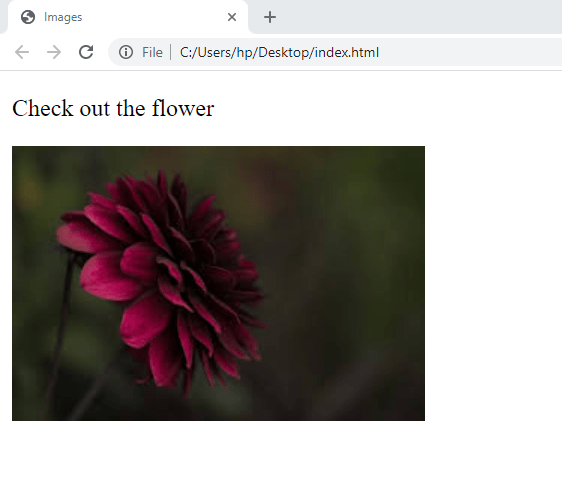
<p> Check out the flower <p>
<img src = “flower.jpg” alt =”red flower” title=”This is a special type of flower found within an amazon forest” />
</body>
</html>
NOTE:
The image name should be the same as in the src attribute in your source code and they should either be in the same folder as your html file or use path to allocate the source of the file.
Resizing an image
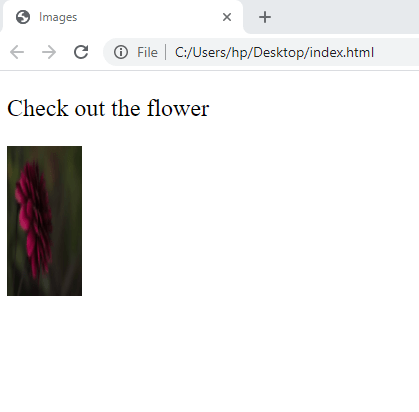
You can adjust the size of your image using the height and width attributes. The measurements of the images are in form of pixel.
Images often take longer to load than the HTML code that makes up the rest of the page. It is, therefore, a good idea to specify the size of the image so that the browser can render the rest of the text on the page while leaving the right amount of space for the image that is still loading.
Example
<!DOCTYPE html>
<html>
<head><title>Images</title></head>
<body>
<p> Types of flowers <p>
<img src = “flower.jpg” alt =”red flower” title=”This is a special type of flower found within an amazon forest” height=”100″ width =”50″/>
</body>
</html>
Positioning of images
An image can be placed in the following areas of a page
- before a paragraph.
- inside the start of a paragraph.
- in the middle of a paragraph.
Example
<!DOCTYPE html>
<html>
<head><title>Images</title></head>
<body>
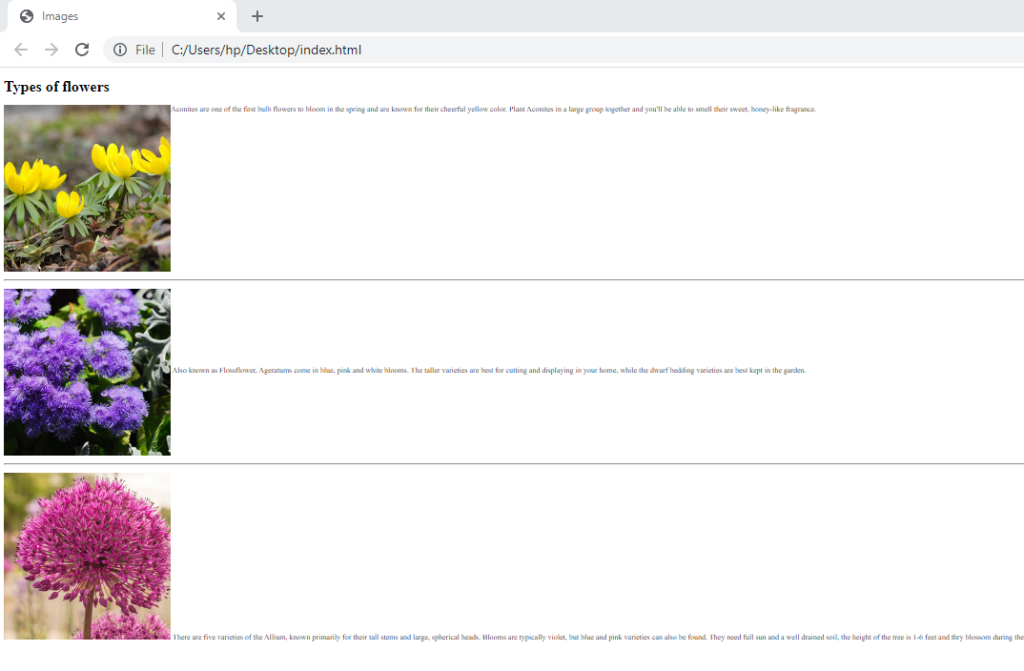
<h1> Types of flowers </h1>
<img src = “winterAconite.jpg” alt =”yellow flower” title=”Aconites are one of the first bulb flowers to bloom in the spring and are known for their cheerful yellow color.” />
<p>Aconites are one of the first bulb flowers to bloom in the spring and are known for their cheerful yellow color. Plant Aconites in a large group together and you’ll be able to smell their sweet, honey-like fragrance.</p>
<hr/>
<p><img src = “ageratum.jpg” alt =”purple flower” title=”Also known as Flossflower, Ageratums come in blue, pink and white blooms.” />
Also known as Flossflower, Ageratums come in blue, pink and white blooms. The taller varieties are best for cutting and displaying in your home, while the dwarf bedding varieties are best kept in the garden.</p>
<hr/>
<p> There are five varieties of the Allium, known primarily for their tall stems and large, spherical heads. Blooms are typically violet, but blue and pink varieties can also be found. <img src = “purple.jpg” alt =”purple flower” title=”There are five varieties of the Allium, known primarily for their tall stems and large, spherical heads.” /> They need full sun and a well drained soil, the height of the tree is 1-6 feet and thry blossom during the late spring or mid winter.</p>
<hr/>
</body>
</html>
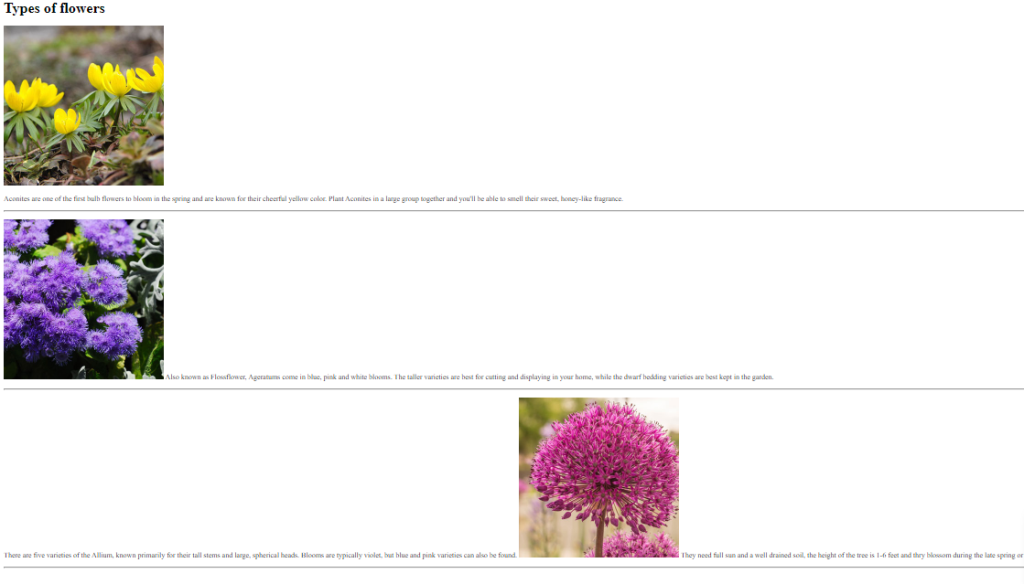
Image alignment
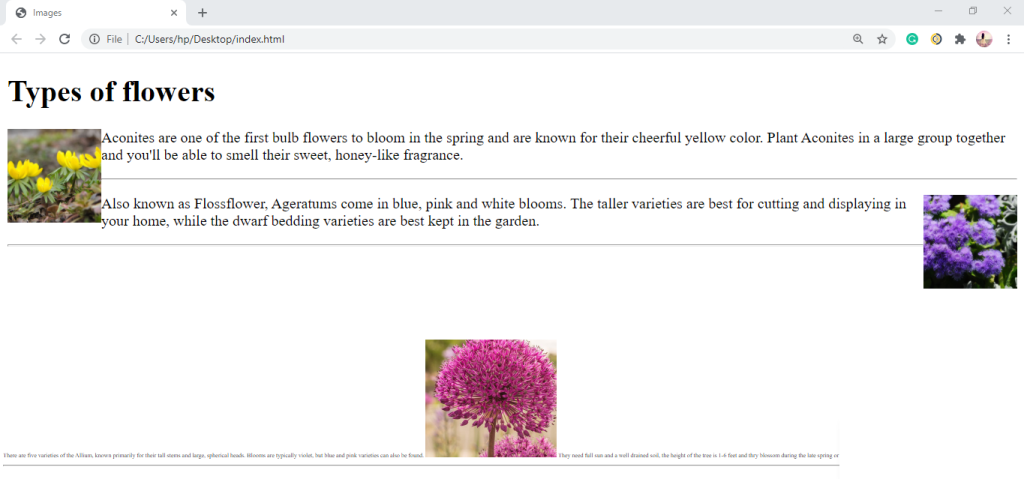
If you wish to align your images on a page use the align attribute.
Horizontal alignment
The align attribute takes the following horizontal values:
Left This aligns the image to the left (allowing text to flow around its right-hand side).
Right This aligns the image to the right (allowing text to flow around its left-hand side).
Example
<!DOCTYPE html>
<html>
<head><title>Images</title></head>
<body>
<h1> Types of flowers </h1>
<img src = “winterAconite.jpg” alt =”yellow flower” title=”Aconites are one of the first bulb flowers to bloom in the spring and are known for their cheerful yellow color.” height=”100″ width=”100″ align=”left” />
<p>Aconites are one of the first bulb flowers to bloom in the spring and are known for their cheerful yellow color. Plant Aconites in a large group together and you’ll be able to smell their sweet, honey-like fragrance.</p>
<hr/>
<p><img src = “ageratum.jpg” alt =”purple flower” title=”Also known as Flossflower, Ageratums come in blue, pink and white blooms.” height=”100″ width=”100″ align=”right”/>
Also known as Flossflower, Ageratums come in blue, pink and white blooms. The taller varieties are best for cutting and displaying in your home, while the dwarf bedding varieties are best kept in the garden.</p>
<hr/>
</body>
</html>
Vertical Alignment
There are three values that the align attribute can take that control how the image should align vertically with the text that surrounds it:
Top – This aligns the first line of the surrounding text with the top of the image.
Middle -This aligns the first line of the surrounding text with the middle of the image.
Bottom- This aligns the first line of the surrounding text with the bottom of the image.
The value of top places the first line of text near the top of the image and subsequent lines of text appear under the image.
The value of middle places the first line of text near the vertical middle of the image and subsequent lines of text appear under the image.
The value of bottom places the first line of text near the bottom of the image and subsequent lines of text under the image.
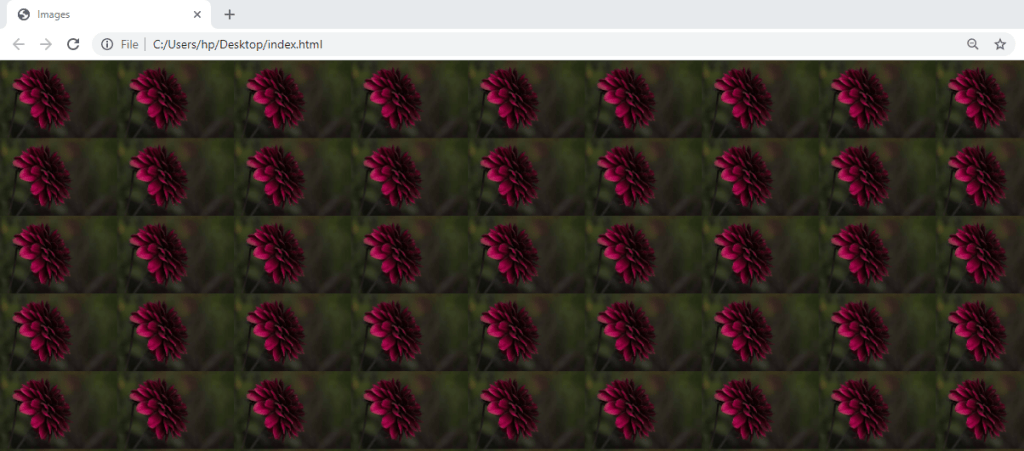
Background Image
A background image can be specified for almost any HTML element.
To add a background image on an HTML element, use the HTML style attribute and the CSS background-image property:
Example
<!DOCTYPE html>
<html>
<head><title>Images</title></head>
<body style=”background-image: url(‘flower.jpg’);”>
</body>
</html>
EXERCISE
- What is the purpose of adding images on web pages?
- State and explain the Five main attributes associated with the <img> element.
- Using relevant examples and source code explain how you can position images on your html pages.
- Outline the THREE values that can be used in vertical alignment.
 Study with Jamila