
When scanning through the table of content of any book or a project you will notice that there are different number format that is used within the document, for example the cover page does not have a page number while pages before the first chapter are labelled with lower case roman numbers like the declaration, acknowledgement abstract are all in lower case roman numbers, from chapter one onwards the pages are whole numbers.
So let’s learn how we can use different page numbering format using Microsoft Word in a document with different sections.
Inserting page numbers with different number format
Follow the steps below in order to change the page number format in your proposal/project. The following should be considered cover page do not have a page number, all pages before chapter 1 are in lowercase roman numbers and pages from chapter 1 are in whole numbers
STEP 1
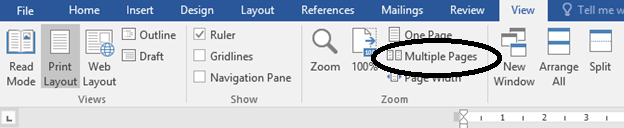
Change the view of the document to Multiple Pages
STEP 2
On this part we are creating sections on the document and will categorize into 3 sections the first one is the cover page the second one are all the pages before chapter one which is comprised of declaration acknowledgement, acronyms, list of figures e.t.c and the third section are pages from chapter one onwards.
In order to achieve this, we will have to insert page breaks.
Insert page breaks in the following pages of your document at the end of cover page, and the page before chapter 1.
These are steps on how to insert page breaks
- Put the cursor at the end of the cover page
- On the layout tab, select breaks

- Then Select the drop down arrow on breaks and choose Next Page on the section breaks, it will create an empty page so go ahead and delete the empty page created.
Repeat the same steps on the page above the chapter 1
STEP 3
On this step we will be inserting page numbers to the document
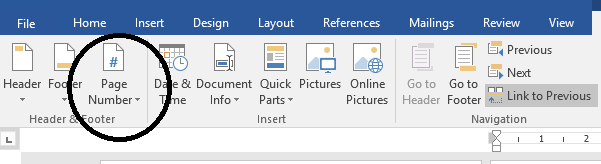
At the bottom of the second page double click to display the footer, when the footer is displaying you can now drop down the page number and select the bottom page and choose the plain number 2 and click the link to previous button.
By default all pages will be numbered with whole numbers starting from 1, on the cover page.
Double click on the bottom page to display the footer, on the cover page delete the number that appears, on the next page, select the page number then choose the format page numbers.
A dialog box will appear

Change the number format to the lower case roman number and on the start at label choose i, after doing this it will automatically number itself on the second section. Repeat the same process on the pages from chapter 1 format page numbers select whole numbers and start at 1.
 Study with Jamila
One thought on “INSERTING DIFFERENT PAGE NUMBERING FORMAT ON A DOCUMENT”